PC Automation Explained: What It Is, the Best Tools, and How to Start
Key takeaway: PC automation means letting software handle repetitive computer tasks for you — renaming files, filling in forms, opening your morning apps — instead of clicking through each step yourself. On Windows, Power Automate for desktop comes preinstalled and needs no code, while Mac users get the same job done with the built-in Shortcuts app.
What PC automation is and what it can do
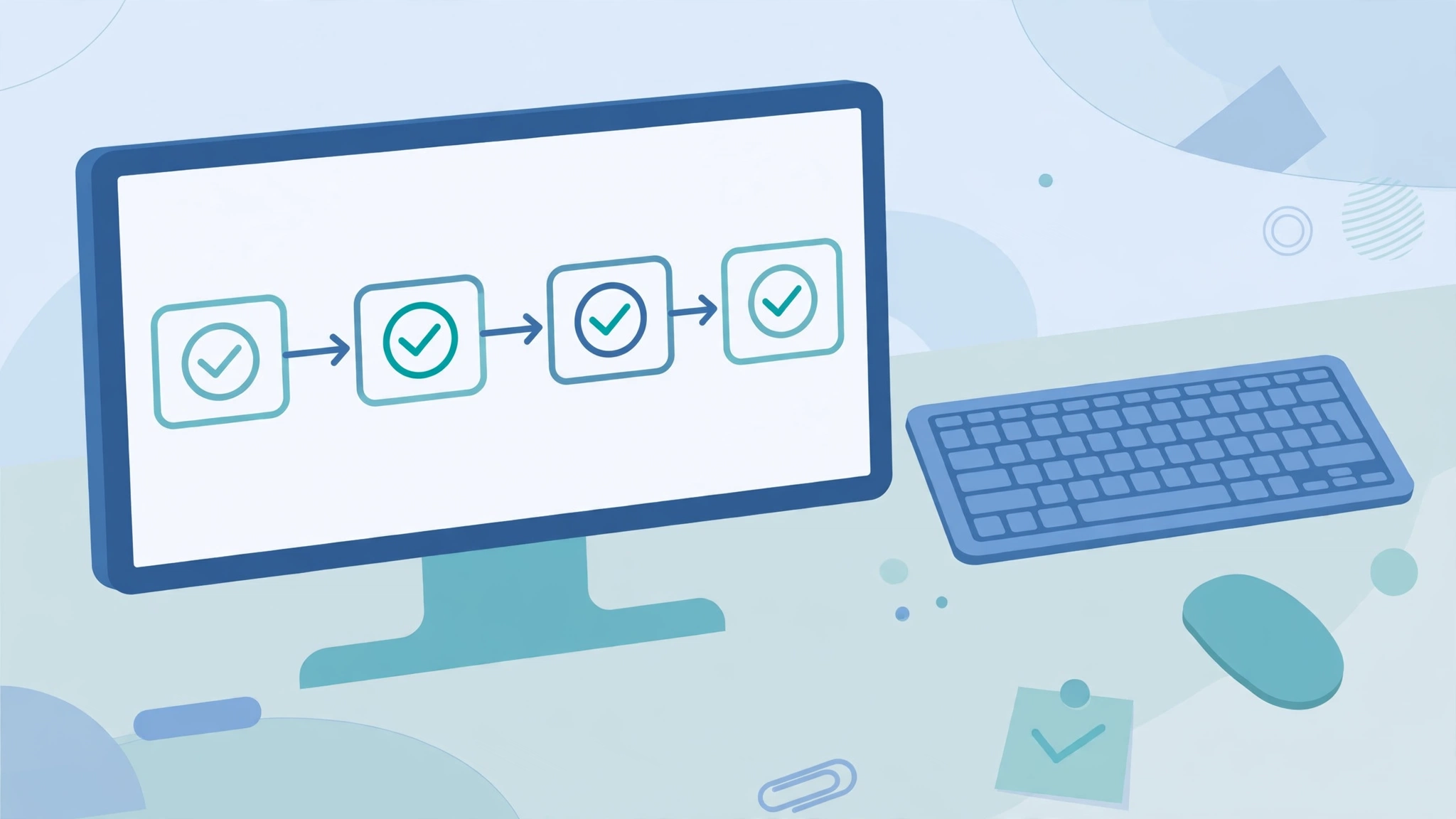
PC automation is the use of software to carry out routine tasks on your computer without manual clicks and keystrokes. You record or describe the steps once, and the computer repeats them on demand or on a schedule.
Typical jobs include renaming batches of files, copying data from a spreadsheet into a form, downloading the same report every morning, and opening the apps you need at the start of work. Anything you do the same way, in the same order, several times a week is a candidate. It is the desktop version of the same idea behind automating IT operations: remove the repetitive work so people spend time on the parts that need judgement. Most PC automation tools follow exact rules you set; they do not decide what to do on their own, and that predictability is exactly what you want for routine chores.
The built-in tools you already have
You may not need to install anything. Windows 11 ships with Power Automate for desktop, Microsoft’s low-code automation app, preinstalled. It offers hundreds of prebuilt actions and a recorder that captures mouse and keyboard activity, so you show it a task once and it replays the steps — no coding needed.
Windows also includes Task Scheduler, which runs programs or scripts at a set time, at log-on, or when the machine is idle. On a Mac, the equivalent is the Shortcuts app, built into macOS 12 (Monterey) and later. Shortcuts chains actions across apps, files, and system settings, and runs from the menu bar, Spotlight, Siri, or a keyboard shortcut. The older Automator app is still included for existing workflows, but Apple’s newer automation work goes into Shortcuts.
PC automation tools compared
The right tool depends on the task and how much setup effort you want to put in. Here is how the main free options line up.
| Tool | Platform | Best for | Skill needed | Cost |
|---|---|---|---|---|
| Power Automate for desktop | Windows 10 and 11 | Form-filling, copying data between apps | Low — record and replay | Free; paid plans add sharing and unattended runs |
| AutoHotkey v2 | Windows | Custom hotkeys, text expansion, scripts | Medium — simple text-file scripts | Free and open source |
| Task Scheduler | Windows | Running programs on a schedule | Low | Free, built into Windows |
| Shortcuts | macOS 12 and later | Chaining actions across Mac apps and files | Low — drag-and-drop actions | Free, built into macOS |
| PowerToys | Windows | Key remapping, window layouts, quick text tools | Low | Free from Microsoft |
AutoHotkey v2 is the free, open-source scripting tool for Windows that turns repetitive work into a keystroke or a short abbreviation. The current version is v2; the older v1.1 branch reached end-of-life in March 2024, so start with v2 and avoid old v1 tutorials, whose syntax does not work in v2.
How much does PC automation cost?
For personal use, PC automation is effectively free. Power Automate for desktop is included with Windows 11 for attended flows — automations that run while you sit at the machine. Sharing flows, triggering them from the cloud, or running them with nobody at the PC requires a paid plan, listed at $15 per user per month. AutoHotkey, Task Scheduler, PowerToys, and macOS Shortcuts are all free. The real cost is setup time: a flow that saves you two minutes a day pays for an hour of setup in a month, while a flow for a task you do twice a year does not.
How to start with PC automation
- Pick one small, frequent task. Renaming downloaded files or opening your morning apps are good first picks.
- Use the tool already on your machine. On Windows 11, open Power Automate for desktop and record the task once. On a Mac, open Shortcuts and drag actions into a sequence.
- Run it yourself first. Watch the automation run and check the result before you trust it on a schedule.
- Keep it small. Short flows are easier to fix when an app’s layout changes and breaks a recorded step.
What PC automation cannot do
Recorded flows break when a program’s buttons move or a website redesigns its layout, so flows that click on screen positions need occasional maintenance. Automation cannot make judgement calls, so anything that needs a human decision — approving an invoice, judging an email’s tone — should stay manual. And automations that touch files, messages, or accounts deserve the same caution as any software: review what each step accesses before you let it run, especially scripts downloaded from the internet. For a wider view of the terminology, see our guide to common automation abbreviations.
Analysis: where PC automation pays off
Analysis: PC automation pays off fastest for office workers and anyone who lives in the same few apps all day. The wins are not dramatic — ten small chores that each take two minutes add up to hours a month. The mistake is starting with the hardest workflow; the win is starting with the most repeated one. The built-in options above cover most personal needs for free, and business-grade platforms only become worth it when flows must run unattended or be shared across a team.
Frequently asked questions
What is PC automation in simple terms?
PC automation means software doing repetitive computer tasks for you. You teach the computer a sequence of steps once — opening apps, renaming files, filling in a form — and it repeats those steps whenever you ask, or on a schedule, without you clicking through each one.
Is PC automation free?
Yes, for personal use. Windows 11 includes Power Automate for desktop at no cost for attended flows, and Task Scheduler and PowerToys are free. AutoHotkey is free and open source, and macOS Shortcuts is built into macOS 12 and later. Paid plans only add features such as sharing flows, cloud triggers, and unattended runs.
What is the best PC automation tool for beginners?
Start with the tool already on your computer. On Windows, that is Power Automate for desktop: it records your clicks and typing and replays them, with no coding needed. On a Mac, use the Shortcuts app, which builds automations by dragging actions into a sequence. Move to AutoHotkey only when you want custom hotkeys or scripts.
Is PC automation safe?
Generally yes, if you build the automation yourself and review what it accesses. Automations can touch files, messages, and accounts, so check each step’s permissions before running it, and be cautious with scripts downloaded from the internet. Keep flows small so you can see exactly what each one does.
Can PC automation work on a Mac?
Yes. The Shortcuts app is built into macOS 12 (Monterey) and later and automates tasks across Mac apps, files, and system settings. Automator is still included for older workflows, and AppleScript can reach deeper into scriptable apps when a shortcut needs it.
Sources
- Microsoft Learn — Get started with Power Automate in Windows 11
- Online Tech Tips — AutoHotkey v2 Tutorial: How to Automate Windows Tasks (2026)
- SofaDeck — How to Automate Tasks on Windows: Free Tools, No Coding Needed
- SofaDeck — Mac Automation for Everyday Tasks: Shortcuts, Automator and One-Tap Buttons
- How-To Geek — I saved hundreds of clicks and keystrokes with these 5 tiny AutoHotkey scripts